
If you’re seeing Enfra’s Knowledgebase for the first time, here’s the simplest way to think about it:
Knowledgebase lets you give ChatGPT (and other AI tools) information they doesn’t already know – and reuse that information anytime.
Instead of:
- pasting the same links again and again
- explaining your product or client in every chat
- providing phone numbers, emails, or CTAs so ChatGPT doesn’t make things up
You save that information once, and Enfra can add it to your AI chats whenever you need it.
Below are practical, everyday ways people use the Knowledgebase, but first, here’s how to use it.
How to Use Knowledgebase (Step by Step)
You only need to learn this once. After that, it becomes very easy.
Step 1: Open Knowledgebase
Open Enfra and click Knowledgebase.
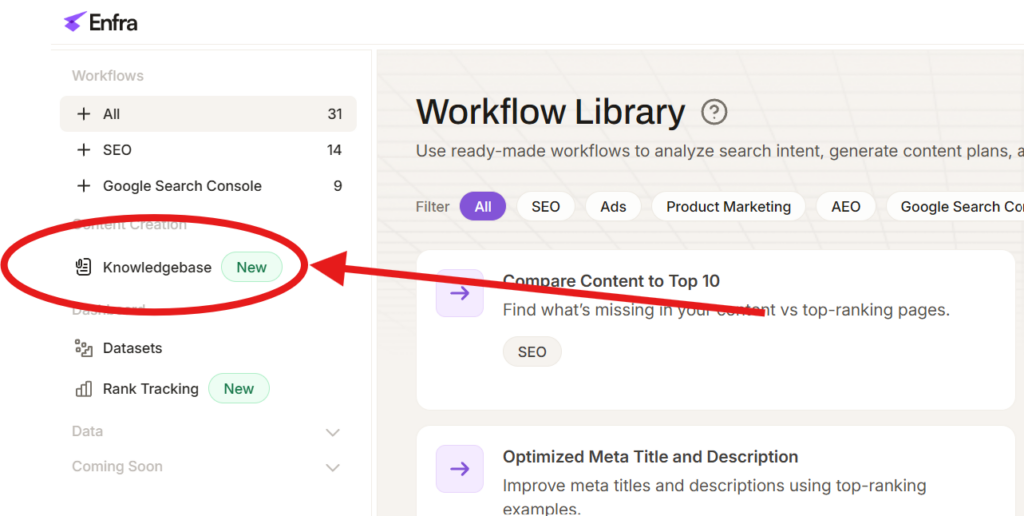
This is where all your saved context lives – things like websites, notes, or SEO research you want ChatGPT to use.
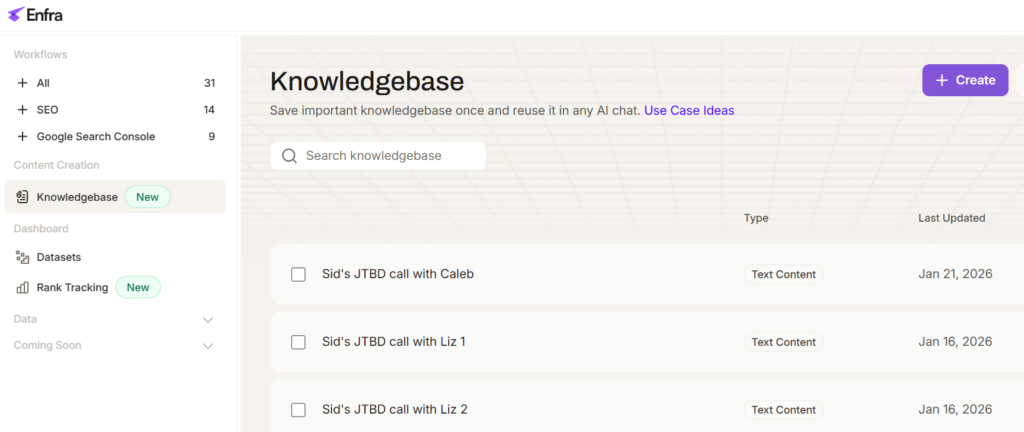
Step 2: Create a new Knowledgebase File
Click Create.
You’ll see three options. Most people start with the first one.
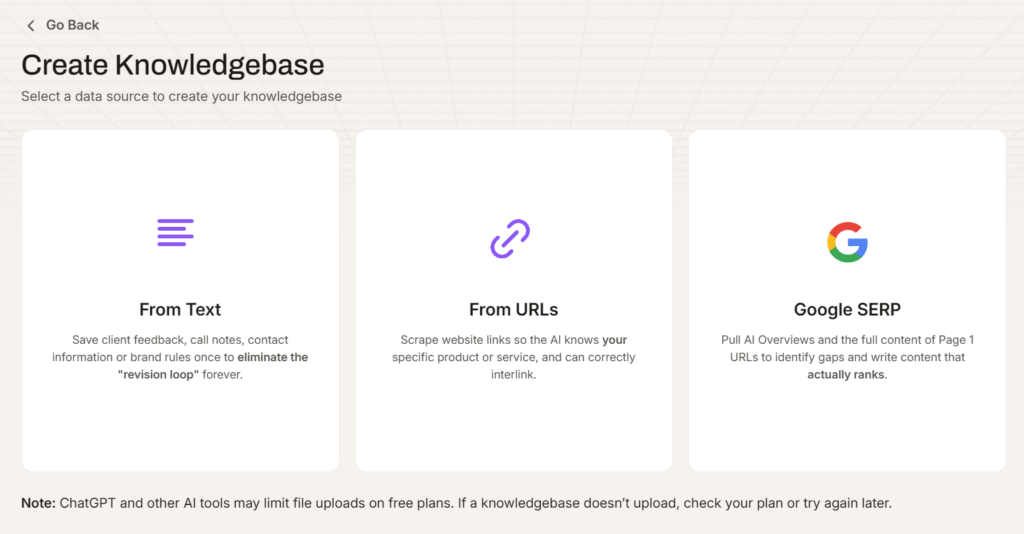
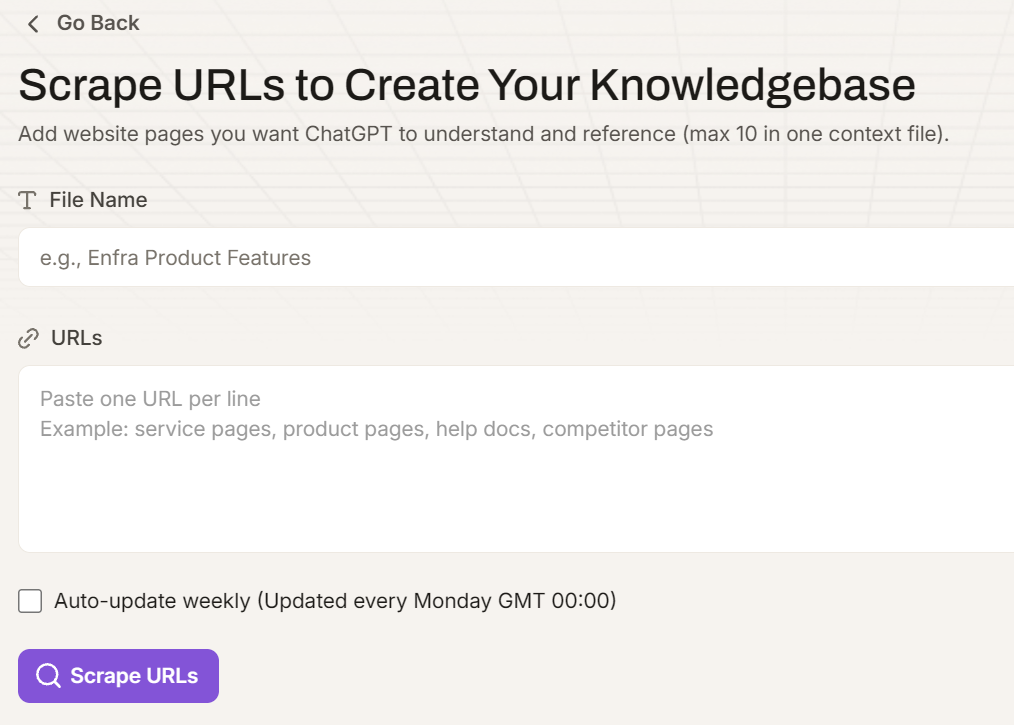
Option 1: Create from URLs (most common)
Use this when you want ChatGPT to understand a website.
Examples:
- Your client’s service pages
- Your SaaS product pages
- A competitor’s website
Paste the URLs (one per line), give the file a name, and create it.
Enfra will scrape and save the content for you.
Option 2: Create from Text Content
Use this when you already have the information written down.
Examples:
- CTA phone numbers and emails
- Brand or tone guidelines
- Notes you usually paste into prompts
Paste the text, name the file, and save it.
Option 3: Create from Google SERP
Use this when writing or updating SEO content, and you want your AI tool to have access to the full content of page 1.
Enter a keyword, choose a country, fetch Google results, and select which ranking pages you want to include as context.
Step 3: Upload the Knowledgebase File into ChatGPT
Once your Knowledgebase File is created, it’s saved in your library.
Inside a ChatGPT conversation:
- Open Enfra
- Select the Knowledgebase File
- Click Upload to Chat
That’s it. ChatGPT now has that information available while responding.
Step 4: Write your prompt normally
You don’t need special prompts.
Just write what you normally would:
- “Write a blog post on…”
- “Create a landing page for…”
- “Rewrite this article…”
Because the context is already attached, ChatGPT will automatically use it.
Step 5: Reuse the same Knowledgebase files anytime
You can reuse the same Knowledgebase file:
- Across multiple chats
- Across multiple pieces of content
- Over days or weeks
If something changes, just update the Knowledgebase file once.
Practical Ways to Use Knowledgebase Files
If you’re an agency SEO or content writer
1. Save contact details used in CTAs (phone, email, links)
If you write content for clients, you’ve probably dealt with this:
- Wrong phone number in a blog
- Old email address
- Missing or inconsistent CTA details
How Knowledgebase helps
Create a small file with:
- Approved phone numbers
- Emails
- CTA text the client wants used
Now whenever you write content, ChatGPT automatically uses the correct contact details.
No more double-checking every post.
2. Write content using your client’s website as context
AI often gets client services almost right – but not quite.
How Knowledgebase helps
- Add your client’s key service pages as a Knowledgebase file
- Enfra scrapes and saves the content
- Upload that context when writing blogs or landing pages
Now ChatGPT:
- Understands what the client actually offers
- Uses the right terminology
- Links to real service pages instead of guessing
This is one of the most common and useful ways agencies use the Knowledgebase.
3. Make sure internal links are correct
Internal links are easy to get wrong:
- Wrong URLs
- Linking to the homepage instead of a service page
- Missing links altogether
Because the URLs are part of the Knowledgebase, ChatGPT knows which pages exist and what they’re about, so suggested links are usually correct.
4. Keep writing style consistent across writers
If multiple people write content for the same client:
- Tone varies
- Structure changes
- CTAs feel inconsistent
Create a Knowledgebase File with:
- Writing style guidelines
- Formatting rules
- Examples of good content
Upload it whenever you write.
This helps new writers produce on-brand content faster.
If you write content for a SaaS product
5. Help ChatGPT understand your product correctly
Many SaaS writers face this problem:
“The AI doesn’t really understand our product.”
How Knowledgebase helps
- Add your product pages and feature pages as a Knowledgebase file
- Upload it when writing blog posts
Now ChatGPT:
- Describes features correctly
- Mentions the right use cases
- Links to the correct product pages
This is especially helpful if you’re new to the product or the product is complex.
6. Write competitor comparison or “Alternatives” posts
Comparison content takes time to research.
How Knowledgebase helps
- Create one Knowledgebase File from your website
- Create another from a competitor’s website
- Upload both into the same chat
ChatGPT can now:
- Compare features accurately
- Explain differences clearly
- Give accurate pricing comparisons
- Avoid making things up
This makes writing “X vs Y” or “X Alternatives” posts much easier.
7. Avoid outdated or incorrect product details
AI sometimes:
- Mentions old features
- Misses new ones
- Describes pricing incorrectly
Keeping updated product information in the Knowledgebase reduces these mistakes.
If you’re doing SEO or content optimization
8. Write content based on what already ranks on Google
Guessing what to include in an article is hard.
How Knowledgebase helps
- Create a Knowledgebase file from Google SERPs for a keyword
- Upload it before writing
ChatGPT can now:
- See what competitors cover
- Identify missing sections
- Help you write more complete content
9. Refresh old blog posts easily
Old content often stops ranking because search intent changes.
How Knowledgebase helps
- Create a SERP Knowledgebase file for the keyword
- Upload it along with your old article
Ask ChatGPT to update the content based on current results.
This makes content refresh much faster.
Other simple but useful ways to use the Knowledgebase
10. Save FAQs, notes, or internal knowledge
You can also use the Knowledgebase for:
- FAQs
- Customer questions
- Internal notes
- Brand rules
Any information you often repeat to ChatGPT is a good candidate for a Knowledgebase file.
Final thought
The Knowledgebase isn’t something you need to overthink.
If you’ve ever:
- Re-explained the same thing to ChatGPT
- Fixed the same mistake more than once
- Pasted the same links repeatedly
That information probably belongs in the Knowledgebase.
Start small. Add more as you go.

Cofounder and CEO of Enfra. 15 years experience in the trenches of tech marketing.