
Enfra can now create, assign, and update Zoho Projects tasks directly from chat.
That means when an audit surfaces an issue or you finish a brief, you don’t have to copy the recommendation into Zoho Projects, rewrite the details, and assign it to someone manually. Just tell Enfra what needs to be done, and it can create the task for you.
Your team can keep working in Zoho Projects as usual – without manually switching between your SEO workflow and project management.
Connect Zoho Projects in Enfra →
What changed: Enfra now writes the work into Zoho
Most SEO tools stop at the recommendation. The actual work still has to be turned into a task somewhere else – usually by copying the recommendation into your project management tool and filling in the details again.
Enfra can now do that part for you.
When you find something that needs to get done, you can ask Enfra to create a Zoho Projects task right from the conversation. It can add the details, assign the task, and update it as the work moves forward.
The recommendation and the task can now live in the same workflow.
How to connect Zoho Projects in 30 seconds
Connecting Zoho Projects takes three steps:
- Sign in to your Enfra workspace, open Integrations, and connect to Zoho Projects.
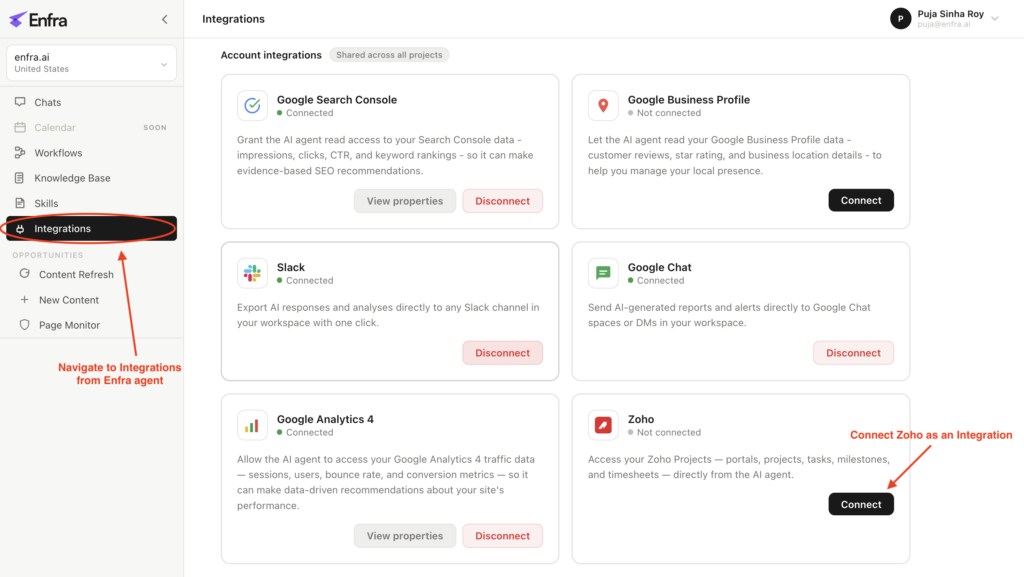
Connect Zoho Projects from the Integrations page in your Enfra workspace. - Choose the portal and project where you want Enfra to create tasks.
- Confirm the connection. You’re ready to create and manage Zoho Projects tasks from Enfra chat.
If you’ve already connected Search Console or GA4, the setup will feel familiar. The only difference is what each integration does after the connection.
Demo: connect Zoho and create a task in one prompt
Here’s what it looks like end to end. Chat in plain language. There’s absolutely no syntax to memorize – just a conversation, a connection, and a Zoho task at the other end.
1. Ask in plain language
Open a conversation and tell Enfra what needs to get done. It could be a content refresh, an audit follow-up, a backlog of content gaps, or anything else that would normally become a Zoho task.
For example: “Create a Zoho task in [project] to refresh the blog post on [topic] and assign it to me with tomorrow’s deadline”

Ask Enfra to create a Zoho Projects task directly from your conversation.
You don’t need to follow a specific format or specify every task field. Enfra understands the request and fills in the relevant Zoho Projects details for you.
2. Watch Enfra create the task
Enfra pulls the relevant context from the conversation and turns your request into a structured Zoho Projects task – setting the project, assignee, priority, dates, and description for you.

Enfra creates the task with the project, assignee, priority, dates, and description already filled in.
3. See the task in Zoho
Once Enfra creates the task, it appears in the Zoho Projects project you selected during setup.
The title, description, subtasks, assignee, due date, and priority are already filled in. Your team can open it in Zoho and get to work – no copying or re-entering the details.
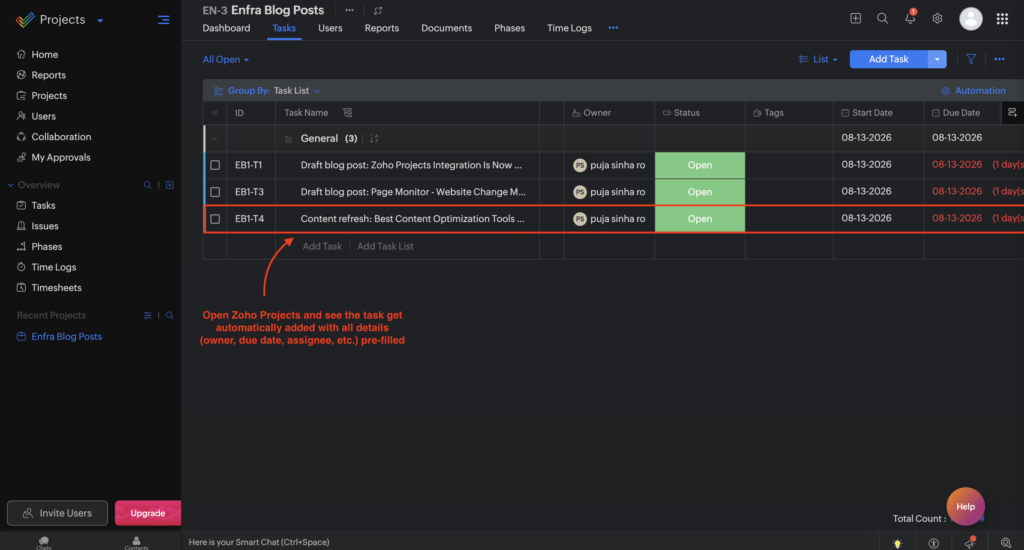
The task appears in Zoho Projects with the key details already filled.
That’s the whole workflow: connect Zoho Projects once, ask Enfra to create a task, and find it ready in your project.
Connect Zoho Projects in Enfra →
What the agent can do once Zoho is connected
Once Zoho Projects is connected, Enfra can read from and write to your projects. That means it can use the SEO context already available in your conversation, from your pages, briefs, audits, competitor gaps, and more when creating or updating tasks.
Here are five things you can do right away:
1. Create tasks from any prompt
Turn an audit finding, content brief, gap analysis, or refresh plan into a Zoho task with a simple follow-up.
Enfra can populate the title, description, subtasks, due date, assignee, and priority based on the work you’re asking it to create.
2. Turn a list of work into multiple tasks
Have a list of striking-distance keywords, competitor gaps, or audit issues? Ask Enfra to turn them into individual Zoho tasks.
It can create the tasks in one go and fill in the relevant details without you having to specify every field for every item.
3. Bring Zoho context into your SEO workflow
Enfra can read existing tasks, project members, statuses, and dependencies before creating new work.
For example, you can ask it to look at last month’s completed tasks alongside your current Search Console and GA4 data and create a new client agenda in Zoho.
4. Turn Page Monitor alerts into tasks
When Page Monitor catches an issue, you can turn it into a Zoho task instead of manually copying the alert over.
That could be a 404 on an important URL, or another issue worth investigating. The task can include the affected page, what changed, and the recommended next step.
5. Update existing tasks from chat
You can also use Enfra to manage work that’s already in Zoho.
Reference a task and ask Enfra to add a subtask, change the assignee, move the due date, or mark it complete once the work is finished.
Frequently asked questions
Is Zoho Projects included in my existing Enfra plan?
Yes. The Zoho Projects integration is included with all paid Enfra plans at no extra cost.
Can Enfra create multiple Zoho Projects tasks at once?
Yes. You can give Enfra a list of issues, recommendations, or follow-up items and ask it to create a separate Zoho Projects task for each one.
Does Enfra store my Zoho Projects data?
No. Enfra uses Zoho’s API to access your projects and write tasks when you ask it to. It does not persist your tasks, projects, or comments.
Can I limit which project Enfra can access?
Yes. You choose the portal and project when you connect Zoho Projects. Enfra only writes to the project you select.
What Zoho Projects fields can Enfra fill in?
Enfra can automatically fill the task title, description, subtasks, due date, assignee, and priority based on your request and the available context.
Turn SEO work into tasks without the copy-paste
With Zoho Projects connected, Enfra can take you from SEO analysis to an actionable task list in the same conversation. Run an audit, build a content brief, review your monthly report, or spot an issue with Page Monitor – and ask Enfra to create the follow-up tasks in Zoho.
No copying recommendations into another tool. No re-entering descriptions or assigning tasks one by one. Just tell Enfra what needs to happen, and let it handle the handoff.
Connect Zoho Projects in Enfra →

Marketing Engineer at Enfra | Building agentic systems, web applications, and software products.